


How do you scan a document with your phone and have a neat PDF in the cloud within a minute? All you need is the OneDrive app, which you most likely already have on your phone with Microsoft 365. The Scanner feature photographs the paper, crops the edges, straightens the perspective and saves the result as a PDF straight to OneDrive. No scanner, no emailing photos to yourself and no extra app.
How to scan a document in OneDrive in a nutshell
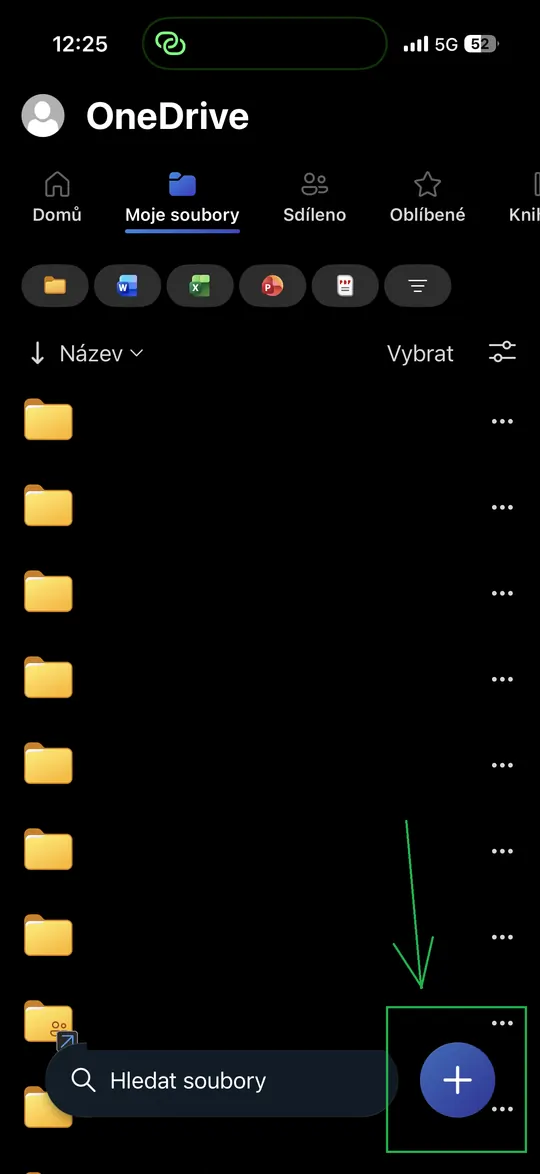
- Open the OneDrive app and tap the blue button +.
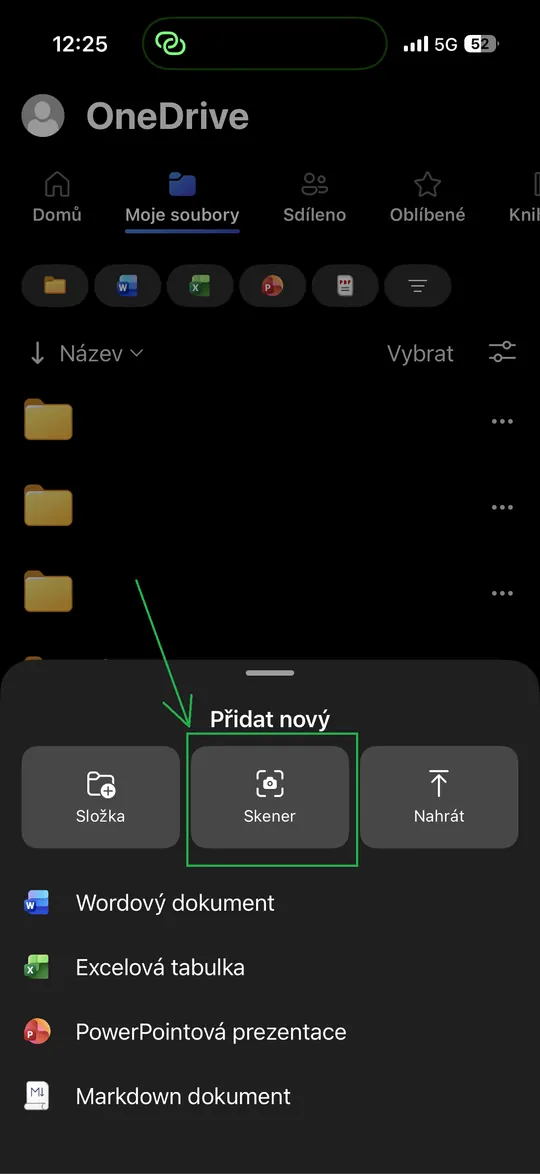
- In the Add new menu, choose Scanner.
- Select the Document mode and take a photo of the paper.
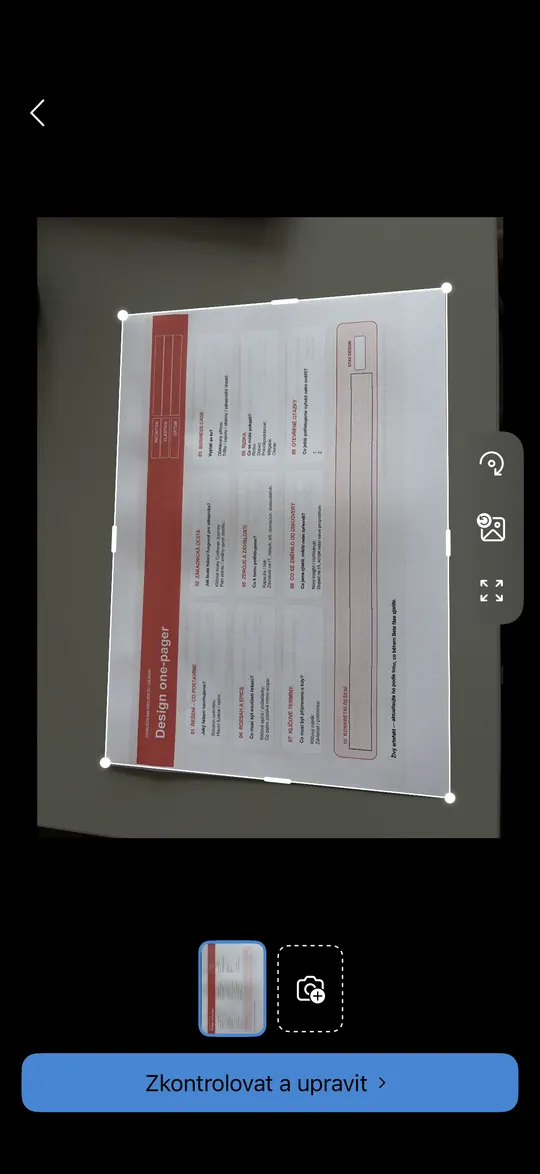
- Check the cropping and tap Review and edit.
- Optionally adjust the filter or add more pages, then tap Done.
- Rename the file, choose a folder and tap Save to OneDrive.
The result is a PDF that syncs to your computer automatically and can be shared right away. The whole thing takes about a minute.
Why scan with OneDrive
In my training sessions, people often ask me what the fastest way is to get a paper contract, receipt or filled-in form into their computer. Most people take a photo and send it to themselves by email or WhatsApp. But the photo tends to be skewed, with part of the desk around it, and it gets lost among other pictures in the gallery.
The OneDrive Scanner solves all of this at once:
- It automatically finds the edges of the document, crops the background and straightens the perspective, so the scan looks like it came from an office scanner.
- It saves directly to PDF, a format anyone can open.
- The file is in the cloud right away: you'll find it on your computer, in Teams and on the web, and you can send it as a link.
- One file can have multiple pages, so a multi-page contract won't end up scattered across ten photos.
- There's nothing else to install. The feature is part of the OneDrive app for iPhone and Android, and it's free.
How to scan a document with your phone: step-by-step guide
The screenshots are from an iPhone with the Czech version of the app. On Android, the buttons are in the same places and have the same names.
Step 1: Open OneDrive and tap the + button
Launch the OneDrive app and go to the folder where you want to save the scan (for example My files). In the bottom right corner, tap the round blue button +.
Step 2: Choose Scanner
The Add newmenu slides up from the bottom. In the middle, tap Scanner. When you use it for the first time, the app will ask for access to the camera, which you need to allow.
Step 3: Select Document mode and take a photo of the paper
In the bottom bar, keep the Documentmode selected. Place the paper on a contrasting surface, ideally a darker desk, and hold the phone straight above it. The app marks the corners of the document by itself. Then press the large round shutter button.
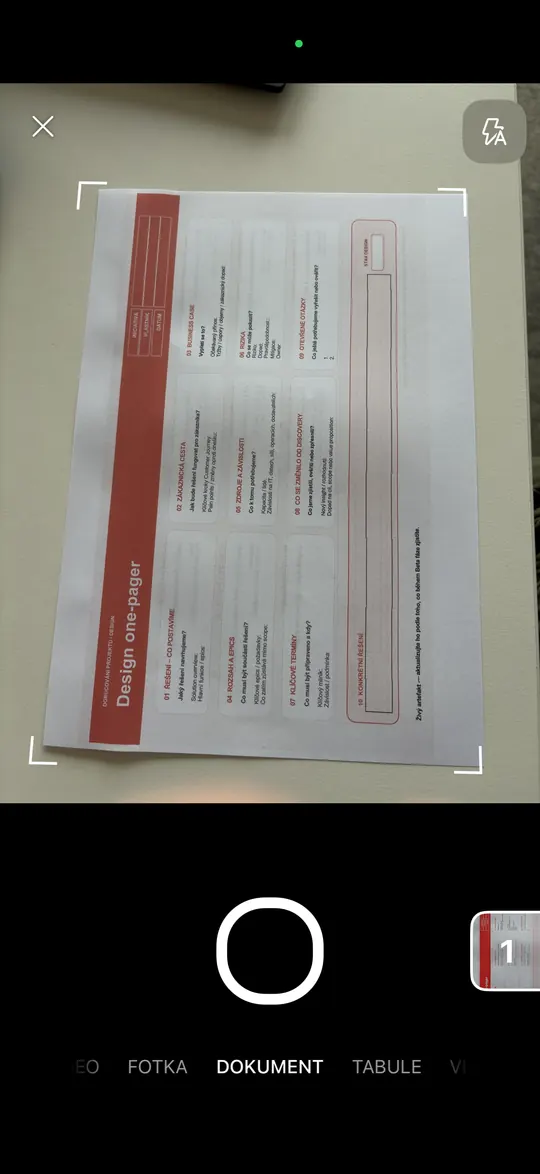
Tip: Besides Document mode, the scanner also offers Whiteboard (reduces glare on a whiteboard or flipchart) and Photo for a regular picture. Whiteboard mode can be a better fit, for example, for quickly saving meeting notes from a whiteboard.
Step 4: Check the edge cropping
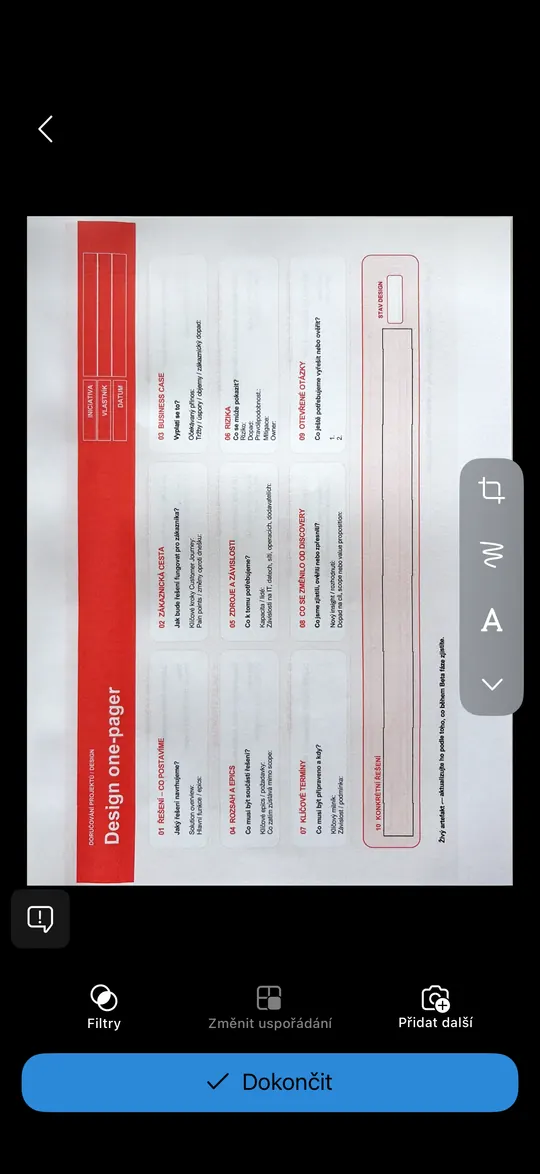
After taking the photo, you'll see the image with a white frame. If the app didn't catch the edges exactly, drag the circle in the corner with your finger to the corner of the paper. The icons on the right let you rotate the scan or restore the original crop. If you want to scan another page, tap the square with the camera and plus icon. Otherwise continue with the button Review and edit.
Step 5: Adjust the scan and tap Done
Now you can see the straightened document without the background. You have these options:
- Filters: for example black and white for text, or colour for documents with logos and charts.
- Crop, draw and text (panel on the right): you can circle something or add a note.
- Add more: scan another page into the same PDF.
- Reorder: change the order of pages in multi-page scans.
When you're happy with it, tap Done.
Step 6: Name the file and save the PDF to OneDrive
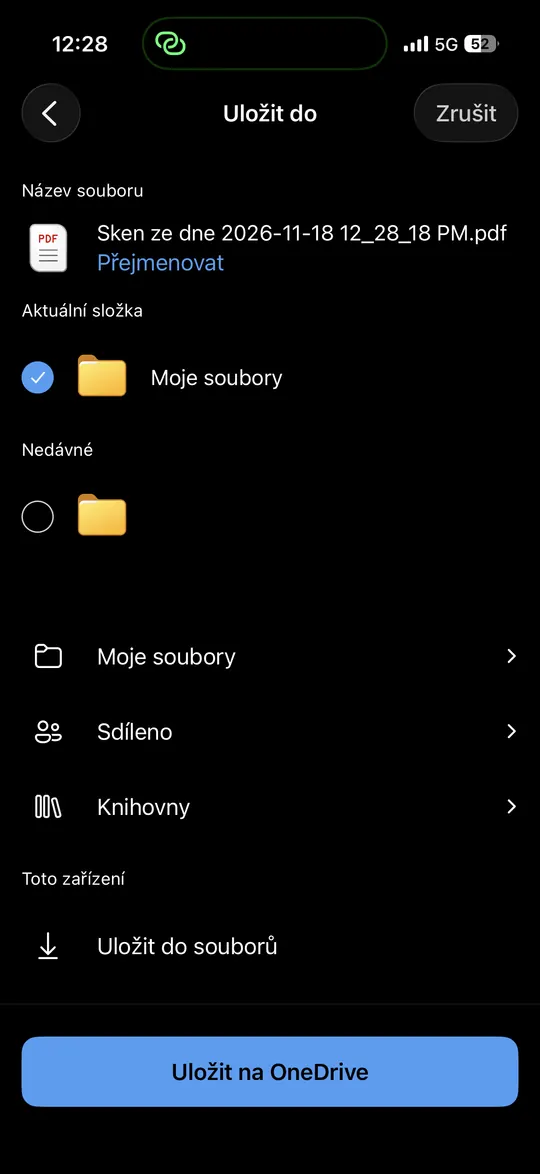
The app names the file automatically by date and time, for example Sken ze dne 2026-11-18 12_28_18 PM.pdf. Tap Rename and give it a name you'll be able to find a month from now, such as Smlouva-najem-2026.pdf. Check the destination folder (you can also choose a shared folder or a SharePoint library) and tap Save to OneDrive.
Step 7: Find the scan on your computer
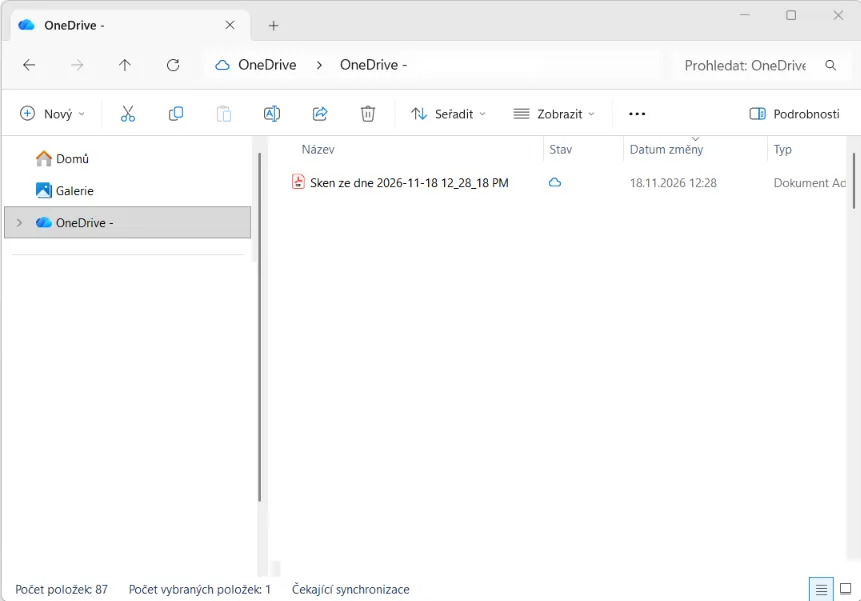
If you have OneDrive sync turned on on your computer, the PDF appears in File Explorer in the same folder within a few seconds. The cloud icon in the Status column means the file is stored in the cloud and will be downloaded when you open it. You'll also find it at onedrive.com or in Teams.
5 tips for a perfect scan
- Contrast is key. The app recognises white paper on a dark desk far more reliably than on a white tablecloth.
- Light from the side, not from above. If you stand between the lamp and the paper, you cast a shadow on it. Turn off the flash, which causes glare.
- Hold the phone parallel to the paper. The app corrects the perspective, but the less tilt, the sharper the text.
- Scan multi-page documents into a single PDF using Add more, not as separate files.
- Name files right away. Format what-who-year (e.g. Invoice-Electricity-2026-11) will save you searching later.
What to use OneDrive scanning for
- Signed contracts and forms: sign on paper, scan and send as a link.
- Receipts and invoices for business trip expense reports or your accountant.
- Notes from a whiteboard or flipchart after a meeting or workshop (Whiteboard mode).
- Personal documents, such as medical reports, warranty cards or your children's school reports, so you have them at hand even when the original stays at home.
- Material for Copilot: Microsoft 365 Copilot can summarise a scanned document in OneDrive or pull out the key points. For inspiration, see the article Copilot in OneDrive – prompts from the webinar.
Frequently asked questions about scanning in OneDrive
Is scanning in OneDrive free?
Yes. The Scanner is part of the free OneDrive app for iPhone and Android. Any Microsoft account will do, whether personal or work/school (Microsoft 365). The scan does count towards your OneDrive storage, though.
What format is the scan saved in?
Documents, whiteboards and business cards are saved as PDF. You can add multiple pages to one PDF using the Add more button.
How do I scan multiple pages into one PDF?
After taking a photo of the first page, tap Add more (or the camera icon with a plus), photograph the next page and repeat. Change the page order with Reorder. At the end, tap Done and everything is saved as one file.
Does the scanner work on Android too?
Yes. The process is the same on Android: in the OneDrive app, tap the + button, choose Scanner (or Scan), take a photo of the document and save it.
Where do I find the scanned document on my computer?
In the OneDrive folder in File Explorer, in the same folder you chose when saving. If you don't use sync, open the file at onedrive.com or in the Teams app under Files.
Can I save the scan to a shared folder or to SharePoint?
Yes. On the Save to screen, instead of My files choose Shared or Libraries and select your team's destination folder. Your colleagues will see the scan right away.
Do you want your team to get the most out of Microsoft 365?
Scanning is just one of dozens of small tricks that save people hours at work. In my OneDrive, Teams and Copilot training sessions, I show them using real situations from your company. See my training courses →